Help centerTransactions
Import transactions from a file or photo
Bring in transactions from a bank CSV, a PDF statement, or a photo of a statement, with duplicates caught before anything is saved.
Import is for transactions that do not come from a bank connection. You might be on the free plan, your bank might not connect, or you might want months of history from before you joined. Copia reads the file, asks only what it cannot work out, and shows every row before saving anything.
Start an import
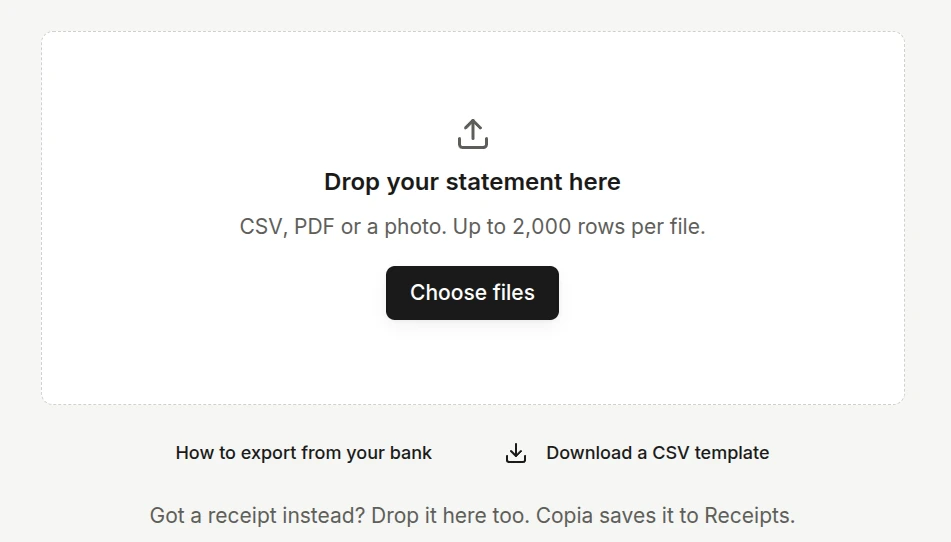
On Transactions, choose Import in the top bar. Drop a file on Drop your statement here or choose one.
- CSV. Most bank exports work as they are, up to 2,000 rows per file. If you are building a file by hand, download the CSV template from the same page for the column names Copia expects.
- PDF or photo. Copia reads the transactions off the page. It shows Reading your statement… while it works.
Set up
Copia skips this step when it already understands the file. Otherwise it shows the columns over real rows from your file, so you can check a match by reading it.
- Columns. Date, amount, and description are required. Copia suggests a match for each column from its header.
- Purchases in this file are. If the file does not make it clear, say whether purchases are negative or positive numbers. A Type column overrides this.
- Accounts. Pick the Copia account the rows belong to, or add a new one in place. A file with several accounts asks about each.
Photos and PDFs only need an account.
Review
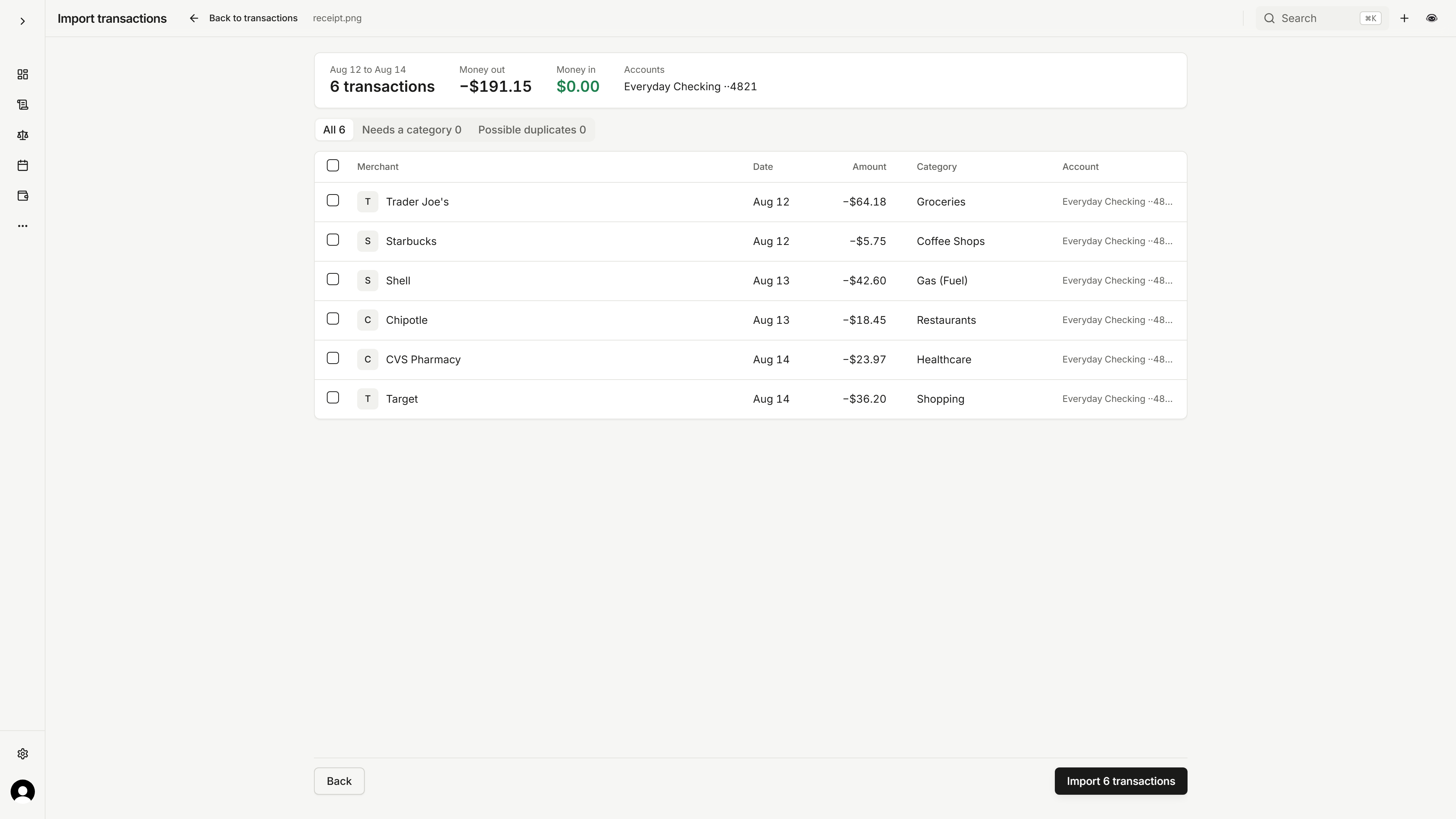
Every row appears in one list before it is saved. A summary at the top shows the date range, row count, money in, money out, and accounts. Use the tabs to narrow the list.
- Possible duplicates shows rows that are already in Copia, like "Already in Checking on Nov 3". Choose Skip or Keep both on each one, or skip them all.
- Needs a category shows rows Copia could not categorize. Set them one at a time or select several.
- Merchants Copia could not match ask you to confirm a name before importing, so imports reuse the same merchant names as bank sync.
After importing
A toast says how many transactions were imported and how many duplicates were skipped. Copia then opens Transactions filtered to that import. Undo on the toast removes every transaction the import added and puts account balances back.
Common questions
What if I import a file twice?
The review step marks every row that is already in Copia as a possible duplicate, so you can skip them. If you import anyway, Undo on the toast removes everything that import added.
Will bank sync duplicate the transactions I imported?
Copia works to match a synced purchase to the imported one and keep a single transaction, instead of adding a second copy.
Which file types work?
CSV on every plan. PDF and photos (PNG, JPEG, or WEBP) on the paid plan.