Help centerBudgeting
Your monthly budget
Plan what each category gets this month, see what is left as you spend, and carry the plan into next month.
The budget is a plan for one month. You write down the income you expect, give each category an amount, and Copia shows how much of each amount is left as transactions come in. We use it as the page we check before spending, because it answers "can I still afford this?" for the category in question.
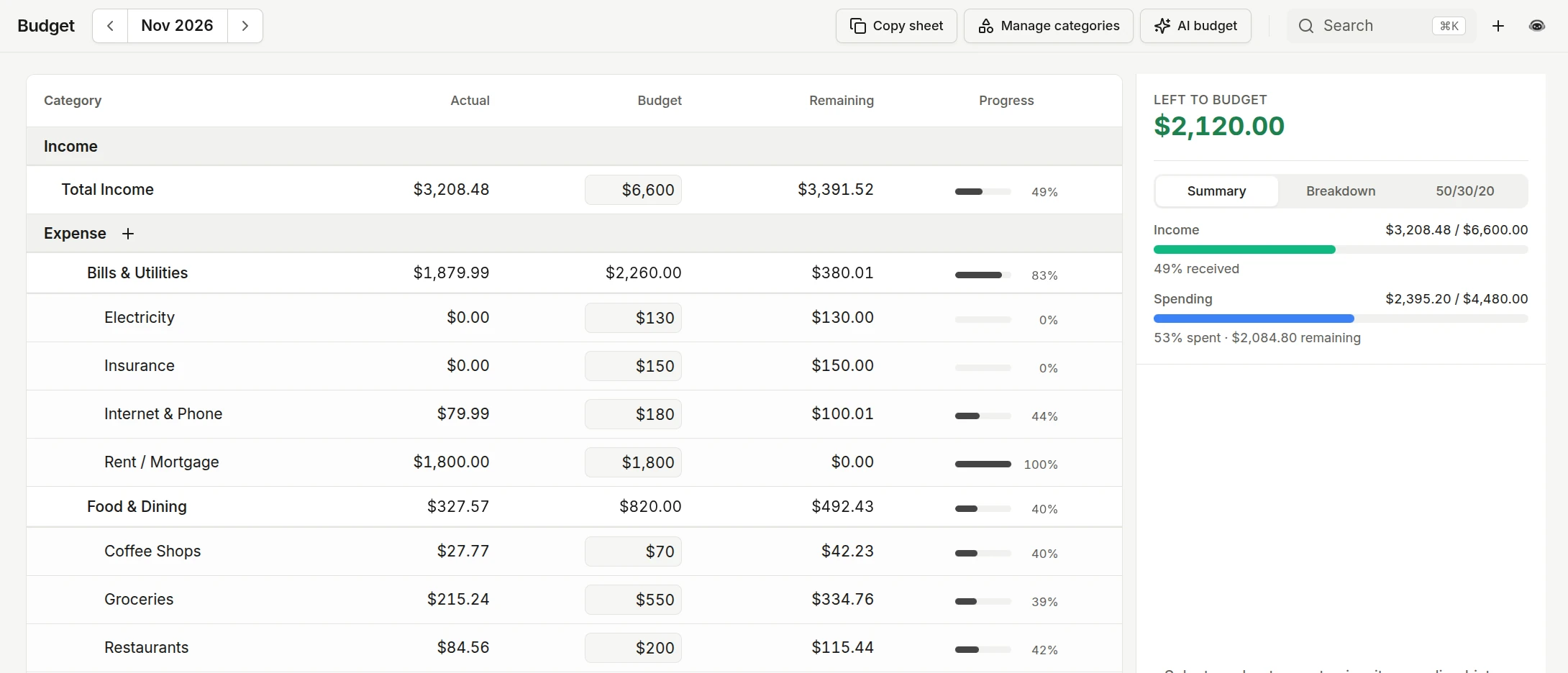
How the page is laid out
- Month picker. The bar at the top switches months. Each month has its own sheet, so changing April never changes May.
- Income. Expected income sits in its own row at the top. Type the amount you expect to earn, and the row fills in with what has actually arrived.
- Categories. Each category groups its subcategories. The columns are Budget (your plan), Actual (what you spent), Remaining, and Progress.
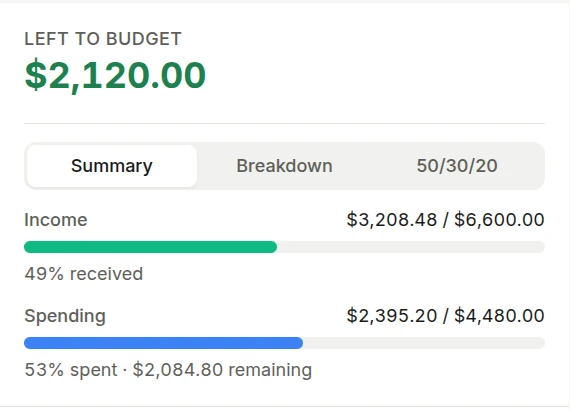
- Summary panel. The right side shows Left to budget, which is expected income minus everything you planned. It also has tabs for income and spending progress, a breakdown of expenses, savings, and debt, and a 50/30/20 view.
Set an amount for a category
Click a subcategory’s Budget field and type the amount. It saves as soon as you leave the field, and Tab jumps to the next subcategory, so you can fill a whole month from the keyboard.
When the amounts you planned add up to more than your expected income, the totals row shows a warning. That is the signal to trim a category or raise expected income.
Look at one category’s history
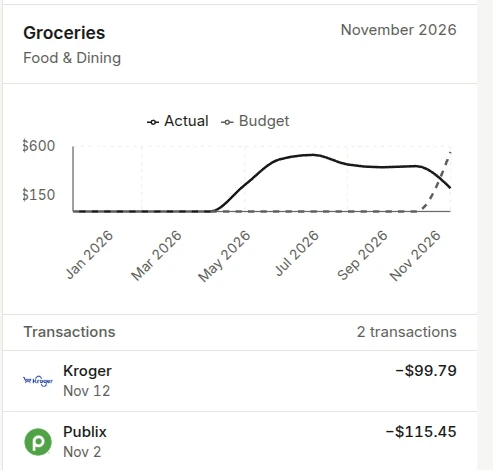
Click a subcategory row and the right panel switches to that subcategory. It shows a 12-month chart of what you planned against what you spent, and the transactions that landed in it this month. Click the income row to see the same thing for income. On a phone, tapping a row opens a sheet with the amount, the history, and this month’s transactions.
Hide categories you do not use this month
Each category and subcategory has an eye-off control. Hiding a subcategory happens right away. Hiding a whole category asks first, because it takes every subcategory under it off the sheet.
Hidden items move to Inactive in budget at the bottom of their group. Bring one back with Activate, or a whole category with Activate all. If you had set amounts before hiding them, those amounts come back too. To add a category that has never been on the sheet, use Add categories in the section header.
Plan a new month
- Copy sheet copies every amount from another month into the one you are viewing.
- Manage categories opens the category editor without leaving the budget.
- AI budget drafts a full month from your past spending. It looks only at expenses, and with a long history it can take up to a minute, so keep the page open until it finishes.
Debts and savings
Debt payments and savings sit in their own sections in the totals at the bottom of the sheet. They start collapsed, so click the header to open one. Next to the debt account picker, Payoff plan opens a plan for paying that debt down.
On a phone
On a narrow screen each row leads with what is left, with spent of budget under it and a thin progress bar. Red appears only when a category is over. Amounts are read-only until you tap Edit, which turns them into fields and shows the controls for adding categories and debts.
Common questions
Why does a new month already have amounts in it?
When you open a month that has no budget yet, Copia copies the amounts from the current month so you start from last month’s plan instead of from zero. Change any amount and it saves for that month only.
What is the difference between hiding a category and deleting it?
Hiding (the eye-off control) takes a category off this budget sheet but keeps it and its history. It moves to Inactive in budget, and bringing it back restores the amounts you had set. Deleting a category happens in Settings → Categories and removes it everywhere.
Why is Left to budget red?
You have planned more for expenses than the income you expect this month. Lower some category amounts or raise expected income until it is back to zero or above.